
يُعد التخزين الاحتياطي لخوادم Plex أمرًا ضروريًا لحماية ملفاتك الوسائطية من الفقدان. يشعر العديد من المستخدمين بالإحباط وخيبة الأمل عندما تختفي مكتبتهم بالكامل بسبب مشكلات في الخادم أو أخطاء غير مقصودة.
جميع المكتبات قد فُقدت!! لا أرى سوى خيارات Plex عبر الإنترنت، لكن قائمة المشاهدة الخاصة بي لا تزال موجودة. بعد أن أعدت تعيين كلمة المرور وقمت بتسجيل الخروج من جميع الأجهزة، اختفى كل شيء، حتى الخادم الخاص بي بالكامل! هذا خطأ فادح ويؤلمني كثيرًا. الآن مستخدميّ مستاؤون، وسيستغرق الأمر شهورًا لإصلاح مكتباتي.
تشمل الأسباب الشائعة لفقدان البيانات ما يلي:
تلف قاعدة البيانات الرئيسية لـ Plex Media Server، خاصةً إذا تم إيقاف تشغيل الخادم بطريقة غير صحيحة.
تحدث أخطاء في قاعدة البيانات عندما يعمل الخادم على مشاركات الشبكة ولا يتم إغلاقه بشكل صحيح.
يمكن أن يؤدي تطبيق التخزين المتكرر لخوادم Plex إلى تجنب هذه المشكلات وحماية مجموعتك الإعلامية القيمة. وتوفر الحلول المخصصة للمؤسسات، مثل XTT TS657V2، أجهزة قوية مصممة للمستخدمين الذين يحتاجون إلى أداء موثوق وقابلية للتوسع لبيئات Plex الخاصة بهم.
الوجبات الرئيسية
يساعد التخزين الاحتياطي في حماية مكتبة الوسائط الخاصة بـ Plex من فقدان البيانات. ويمكنك الحفاظ على أمان ملفاتك الإعلامية من خلال استخدام تقنية RAID وأجهزة التخزين المرتبطة بالشبكة (NAS) وإجراء عمليات النسخ الاحتياطي بانتظام.
اختر الأجهزة التي تتناسب مع حجم مكتبتك واحتياجات المستخدمين. تساعد المعالجات السريعة ومساحة التخزين الكافية على تحسين أداء البث المباشر وضمان سير العمل بسلاسة.
الصيانة أمر مهم. إجراء الفحوصات الصحية، وتحسين قواعد البيانات، واختبار النسخ الاحتياطية لمنع حدوث المشكلات وإصلاحها بسرعة في حال حدوث أي خطأ.
اختر مستوى RAID يناسب احتياجاتك. يمكن أن تساعدك مستويات RAID 1 أو 5 أو 6 في حالة تعطل أحد محركات الأقراص. تجنب استخدام RAID 0 لأنه قد يتسبب في فقدان كمية كبيرة من البيانات.
اجعل عمليات النسخ الاحتياطي تتم تلقائيًا وراقب الخادم الخاص بك. استخدم البرامج النصية لإجراء النسخ الاحتياطي بشكل متكرر، واستخدم الأدوات للتحقق من حالة الخادم. وهذا يساعد على ضمان أن تكون ملفاتك جاهزة للاستخدام دائمًا.
تقييم احتياجاتك من سعة التخزين

حجم المكتبة ونموها
يجب أولاً تحديد حجم مكتبة Plex الخاصة بك. إذا كان لديك الكثير من الأفلام أو المسلسلات، فستحتاج إلى مساحة أكبر. كما ستحتاج إلى سرعات أعلى لمشاهدتها بسهولة. ومع إضافة محتويات جديدة، ستحتاج إلى مساحة تخزين أكبر.
فيما يلي بعض النقاط التي يجدر التفكير فيها:
محركات الأقراص الصلبة ذات السعة الكبيرة، مثل 2 تيرابايت أو أكثر, ، وهي ضرورية للمكتبات الكبيرة.
إن استخدام محرك أقراص صلبة (SSD) يجعل الأمور أسرع ويساعد على تحميل تطبيق Plex بسرعة.
تؤثر أوضاع التخزين على المساحة المتوفرة فعليًّا. يتطلب وضع المرآة ثنائية الاتجاه ضعف المساحة. لذا، إذا كنت تريد سعة 2 تيرابايت، فيجب أن يكون لديك 4 تيرابايت. يتطلب وضع التكافؤ مساحة تبلغ 1.5 ضعف المساحة الأصلية. فمثلاً، بالنسبة لسعة 2 تيرابايت، ستحتاج إلى 3 تيرابايت إجمالاً.
نصيحة: اختر أجهزة قادرة على التوسع مع مكتبتك. وبهذه الطريقة، لن تضطر إلى إجراء التحديثات بشكل متكرر. كما أن ذلك يضمن استمرار عمل Plex بشكل جيد.
الميزانية والقيود المتعلقة بالأجهزة
يُعد المبلغ المتاح لديك وخياراتك من الأجهزة عاملاً مهمًا للغاية. عليك إيجاد توازن بين السعر والسرعة وكفاءة الأداء. قد تبدو أجهزة NAS الأرخص سعرًا جيدة، لكنها ليست دائمًا قوية بما يكفي. تحتوي العديد من وحدات NAS على معالجات ضعيفة. ولا تستطيع هذه المعالجات أداء المهام الصعبة مثل تحويل الترميز. ويُعد تحويل الترميز ضروريًا لبث أنواع مختلفة من الوسائط. وبعض أجهزة NAS، خاصة تلك المزودة بمعالجات ARM، لا تستطيع إجراء عملية تحويل الترميز على الإطلاق.
ضع في اعتبارك النقاط التالية المتعلقة بالأجهزة:
عادةً ما تكون أجهزة NAS ليست بنفس قوة أجهزة الكمبيوتر العادية.
قد تؤدي المعالجات الضعيفة إلى إبطاء أداء Plex، خاصةً أثناء عملية تحويل الترميز.
قد تقوم وحدات NAS التي تعمل بمعالج ARM بإيقاف تشغيل ميزة التحويل الرقمي، لذا لن تتمكن من استخدامها.
يساعد اختيار خادم مزود بأجهزة قوية، مثل XTT TS657V2، على ضمان الأداء الجيد لتطبيق Plex. فالمعدات الجيدة تحافظ على سلامة ملفاتك الإعلامية وتتيح لمكتبتك أن تنمو بمرور الوقت.
التخزين الاحتياطي لخوادم Plex: الطرق
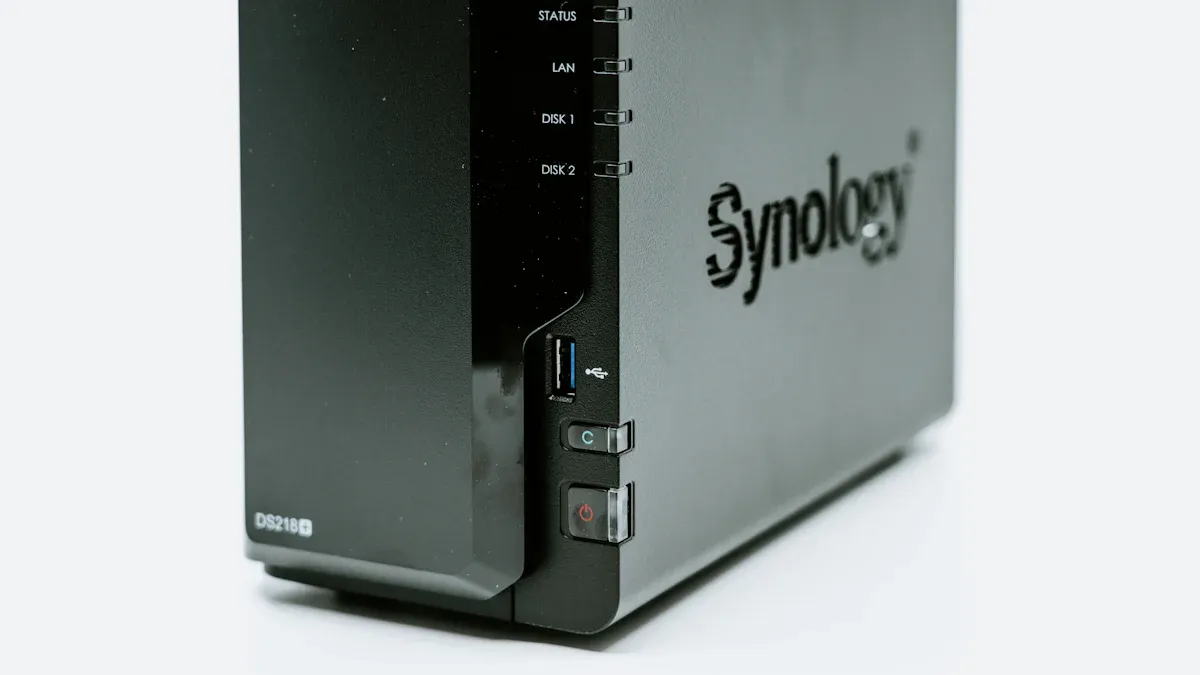
من المهم اختيار أفضل طريقة لحماية ملفات الوسائط في Plex. فكل طريقة لها مزاياها ومشاكلها. لذا، يجب أن تراعي احتياجاتك، وأجهزتك، ومدى رغبتك في التوسع قبل اتخاذ قرارك.
خيارات RAID
يستخدم نظام RAID أكثر من قرص صلب واحد لضمان أمان البيانات وسرعة الوصول إليها. يلجأ الكثيرون إلى استخدام نظام RAID لضمان أمان ملفات الوسائط الخاصة بـ Plex في حالة تعطل أحد الأقراص. وهناك مستويات مختلفة لنظام RAID، حيث يوفر كل مستوى مزيجًا من الأمان والسرعة وسعة التخزين.
معدل الفشل | مدة التعافي | |
|---|---|---|
RAID 0 | مخاطر عالية (تعطل محرك أقراص واحد = فقدان كامل للبيانات) | يتطلب أن يكون كلا محركي الأقراص في حالة جيدة لإجراء عملية الاستعادة |
RAID 1 | متوسط (تعطل محرك أقراص واحد = لا يحدث فقدان للبيانات، لكن هناك مخاطر في حالة عدم اتخاذ الإجراءات اللازمة) | يلزم اتخاذ إجراءات فورية عقب تعطل محرك الأقراص |
RAID 5 | مستوى متوسط (يمكنه تحمل تعطل محرك أقراص واحد، لكن هناك خطر فقدان البيانات في حالة حدوث أعطال متعددة) | يمكن الوصول إلى البيانات أثناء عملية الاستعادة، لكن المخاطر تزداد في حالة تدهور الأداء |
RAID 6 | منخفض (يمكنه تحمل تعطل محركي أقراص) | يمكن استبدال محرك الأقراص المعطل دون فقدان البيانات، لكن هناك خطر حدوث عطل إضافي في محرك الأقراص أثناء عملية إعادة البناء |
RAID 10 | معتدل (يمكنه تحمل أعطال متعددة إذا كانت في مجموعات منفصلة) | يعتمد وقت الاستعادة على محركات الأقراص التي تعطلت، ولكنه يكون أسرع عمومًا بفضل تقنيتي النسخ المتطابق والتوزيع المتوازي |
يقوم نظام RAID 1 بنسخ البيانات إلى محركي أقراص. فإذا تعطل أحدهما، يظل الآخر يعمل. أما نظاما RAID 5 وRAID 6 فيستخدمان مبدأ التكافؤ. وهذا يعني أنه يمكن أن يتعطل محرك أو محركان من الأقراص مع الاحتفاظ بالبيانات. ويجمع نظام RAID 10 بين نسخ البيانات وتقسيمها لتحقيق سرعة وأمان أفضل. أما نظام RAID 0 فلا يضمن أمان البيانات. لا تستخدم RAID 0 مع وسائط Plex.
يدعم الخادم XTT TS657V2 العديد من أنواع RAID. يمكنك استبدال محركات الأقراص بسهولة وإضافة مساحة تخزين إضافية مع نمو مكتبتك. يساعد هذا الخادم المستخدمين على الشعور بالأمان ويضمن استمرار عمل Plex بشكل جيد.
ملاحظة: لا يوفر نظام RAID الحماية إلا من تعطل محركات الأقراص. فهو لا يمنع فقدان البيانات الناتج عن حذف الملفات أو تلفها. لذا، يجب دائمًا استخدام نظام RAID جنبًا إلى جنب مع النسخ الاحتياطية.
حلول NAS
تقوم أجهزة NAS بتخزين الملفات على الشبكة. وهذا يسهل على Plex الحصول على الملفات الوسائطية. وتحتوي العديد من أجهزة NAS على نظام RAID أو طرق أخرى لحماية البيانات. يمكنك اختيار جهاز NAS بسيط أو جهاز كبير سعة لتخزين عدد كبير من الملفات.
يتميز جهاز التخزين الشبكي (NAS) مثل XTT TS657V2 بسعة تخزين كبيرة وميزات رائعة. ويمكنه استيعاب ما يصل إلى 36 محرك أقراص صلبة والعديد من محركات الأقراص الصلبة SSD من نوع NVMe. ويُعد هذا الجهاز خيارًا مناسبًا لمكتبات Plex الكبيرة. ويمكنك مراقبة جهاز التخزين الشبكي الخاص بك من أي مكان باستخدام أدوات التحكم عن بُعد.
تُعد أجهزة التخزين المباشر (NAS) مفيدة للأسباب التالية:
جميع ملفات الوسائط موجودة في مكان واحد.
يمكنك مشاركة الملفات مع العديد من الأجهزة.
لديهم طرق لحماية البيانات.
بعض أجهزة NAS لا تتمتع بأداء قوي. وقد يؤدي ذلك إلى إبطاء أداء Plex، خاصة عند تغيير أنواع الوسائط. اختر جهاز NAS مزودًا بمكونات قوية لضمان بث سلس وتخزين آمن.
النسخ الاحتياطي السحابي واليدوي
توفر النسخ الاحتياطية مزيدًا من الأمان لملفات الوسائط في Plex. يمكنك استخدام النسخ الاحتياطي السحابي أو إنشاء نسخ على محركات الأقراص أو الخوادم الأخرى. لكل طريقة مزاياها وعيوبها.
طريقة النسخ الاحتياطي | الإيجابيات | السلبيات |
|---|---|---|
النسخ الاحتياطي السحابي | تكاليف بدء منخفضة، وتخزين قابل للتوسعة، وإمكانية الوصول من أي مكان، ونسخ احتياطية متكررة تقلل من فقدان البيانات. | التكاليف المرتفعة المحتملة لاستعادة البيانات، ومحدودية سعة التخزين المتاحة، والاعتماد على الاتصال بالإنترنت. |
النسخ الاحتياطي اليدوي | السيطرة المادية على البيانات، وعدم وصول أي طرف ثالث إليها، والوصول الفوري إليها دون الحاجة إلى الإنترنت. | يتطلب استثمارات رأسمالية كبيرة، ومساحة لتركيب الأجهزة، ودعمًا مستمرًا في مجال تكنولوجيا المعلومات. |
تعمل النسخ الاحتياطية السحابية على حفظ الملفات عبر الإنترنت. يمكنك الوصول إلى بياناتك من أي مكان، لكنك تحتاج إلى اتصال جيد بالإنترنت. أما النسخ الاحتياطية اليدوية فتستخدم محركات الأقراص أو الخوادم التي تمتلكها. أنت تتحكم في بياناتك، لكن الأمر يتطلب مزيدًا من الجهد والتخطيط.
يُعد استخدام تقنية RAID وأجهزة NAS والنسخ الاحتياطية معًا أفضل طريقة للحفاظ على أمان ملفات الوسائط في Plex. ويُسهّل جهاز XTT TS657V2 القيام بذلك، حيث يدعم سعة تخزين كبيرة ومحركات أقراص SSD سريعة وإمكانية الفحص عن بُعد. يمكنك إعداد نسخ احتياطية تلقائية ومراقبة نظامك للحفاظ على أمان Plex.
نصيحة: احرص على إجراء نسخ احتياطية بانتظام واختبرها. فهذا يساعد في الحفاظ على سلامة ملفاتك وسهولة الوصول إليها، حتى في حالة حدوث أي مشكلة.
خطوات الإعداد
إعداد خادم Plex إن تنفيذ أي عملية موثوقة يتطلب التخطيط. عليك الانتباه إلى كل خطوة. تساعدك الخطوات التالية على اختيار الأجهزة وتثبيتها وإعداد مساحة التخزين وأتمتة عمليات النسخ الاحتياطي وربط Plex.
تركيب الأجهزة
الانتقاء أجهزة جيدة هذا أمر بالغ الأهمية. يجب أن يتناسب الخادم مع حجم مكتبتك وعدد المستخدمين. يوضح الجدول الأجهزة المستخدمة هو الأنسب لمختلف المستخدمين:
نوع المستخدم | توصيات بشأن وحدة المعالجة المركزية (CPU) | توصية بشأن محرك الأقراص الصلبة | توصيات بشأن الذاكرة |
|---|---|---|---|
صغيرة (1-5 مستخدمين نشطين) | إنتل E3-1220 V1 | قرص صلب بسعة 1 تيرابايت | ذاكرة وصول عشوائي (RAM) سعة 8 جيجابايت |
متوسط (5-15 مستخدمًا نشطًا) | إنتل E3 1240 V3 | قرص صلب بسعة 2 تيرابايت | ذاكرة وصول عشوائي (RAM) سعة 32 جيجابايت |
كبير (15 مستخدمًا نشطًا أو أكثر) | إنتل زيون W-2125 | قرص صلب بسعة 2 تيرابايت | ذاكرة وصول عشوائي (RAM) سعة 32 جيجابايت |
إذا كانت مكتبتك كبيرة أو آخذة في النمو، فإن الخوادم المخصصة للمؤسسات مثل XTT TS657V2 تُعد خيارًا رائعًا. يمكن لهذا الخادم استيعاب ما يصل إلى 36 محرك أقراص صلبة والعديد من محركات الأقراص الصلبة SSD من نوع NVMe. وهو مناسب لتخزين كميات كبيرة من الملفات الوسائطية. ويمكنك ترقيته بسهولة مع تزايد حجم مكتبتك.
تساعد محركات الأقراص القابلة للتبديل أثناء التشغيل في الحفاظ على استمرار عمل الخادم. يمكنك استبدال محرك أقراص معطل دون إيقاف تشغيل الخادم. وهذا يعني أنك ستتمكن دائمًا من الوصول إلى ملفاتك. ويُعد هذا أمرًا مهمًا إذا كنت بحاجة إلى الخادم طوال الوقت. كما تساعد ميزة الاستعادة المتقدمة لنظام RAID في حماية بياناتك، حتى في حالة إزالة محرك أقراص عن طريق الخطأ.
نصيحة: اختر خوادم مزودة بمحركات أقراص قابلة للتبديل أثناء التشغيل وإمكانية الإدارة عن بُعد. فهذا يجعل الخادم أكثر موثوقية ويساعد على تجنب فترات التعطل.
تكوين RAID/NAS
بعد تثبيت الأجهزة، قم بإعداد وحدة التخزين الخاصة بك لضمان الأمان. تساعد كل من تقنية RAID ووحدة التخزين الشبكية (NAS) في حماية بياناتك في حالة تعطل أحد محركات الأقراص. يعمل جهاز XTT TS657V2 مع العديد من مستويات RAID، مثل RAID 1 و5 و6 و10. اختر مستوى RAID الذي يلبي احتياجاتك من حيث السرعة والسعة والأمان.
تقوم تقنية RAID 1 بنسخ بياناتك لضمان أمان بسيط.
يستخدم نظاما RAID 5 و6 مبدأ التكافؤ للحفاظ على سلامة البيانات في حالة تعطل محرك أقراص واحد أو اثنين.
يجمع نظام RAID 10 بين نسخ البيانات وتقسيمها لتحقيق السرعة والأمان.
تجمع أجهزة NAS جميع ملفاتك الوسائطية في مكان واحد. وتتيح لك مشاركة الملفات عبر شبكتك. عند إعداد جهاز NAS، قم بتفعيل ميزات الأمان وتعيين أذونات المستخدمين. ويتميز جهاز XTT TS657V2 بأدوات للتحكم عن بُعد. يمكنك التخطيط لأعمال الصيانة والنسخ الاحتياطي والتحديثات في الأوقات التي لا يكون فيها المستخدمون على الخادم. وهذا يضمن استمرار العمل بسلاسة دون إعاقة الوصول إلى الملفات.
النسخ الاحتياطية التلقائية
توفر النسخ الاحتياطية التلقائية حماية إضافية لمكتبة Plex الخاصة بك. يمكنك إنشاء نصوص برمجية لحفظ إعداداتك وملفات الوسائط الخاصة بك. فيما يلي الخطوات اللازمة لعمل نسخة احتياطية لخادم Plex الذي يعمل بنظام Windows:
اعثر على المكان الذي يحفظ فيه Plex إعداداته، وعادةً ما يكون في
C:UsersUSERNAME_HEREAppDataLocalPlex Media Server.أنشئ مجلدًا للنسخ الاحتياطي على قرص آخر، مثل
D:النسخ الاحتياطية.اكتب برنامجًا نصيًّا باستخدام
xcopyلنسخ الملفات من Plex إلى مجلد النسخ الاحتياطي.احفظ هذا البرنامج النصي باسم
BackupPlexData.bat.قم بإنشاء برنامج نصي آخر لنسخ قاعدة البيانات احتياطيًا واسمه
BackupPlexDatabase.bat.استخدم «مجدول المهام» في Windows لتشغيل هذه البرامج النصية تلقائيًا.
تضمن النسخ الاحتياطية التلقائية أن تكون أحدث بياناتك آمنة دائمًا. اختبر النسخ الاحتياطية بانتظام للتأكد من قدرتك على استعادة ملفاتك عند الحاجة.
التكامل مع Plex
عندما تصبح أجهزتك ووسائط التخزين جاهزة، قم بتوصيل Plex بنظامك. قم بتثبيت Plex Media Server على جهازك. أثناء الإعداد، حدد لـ Plex موقع ملفات الوسائط الموجودة على جهاز NAS أو RAID. اضبط Plex على البحث عن المحتوى الجديد تلقائيًا.
تسهّل الإدارة عن بُعد، كما هو الحال مع جهاز XTT TS657V2، عملية الصيانة. يمكنك:
حدد أوقات بدء الصيانة وإنهائها.
تخطيط عمليات النسخ الاحتياطي لقاعدة البيانات، وفحص المكتبة، والتحديثات.
قم بإجراء أعمال الصيانة عندما لا يكون هناك من يستخدم Plex، مثلًا في الليل أو أثناء غيابك.
تساعد هذه الخطوات في الحفاظ على سلامة خادم Plex الخاص بك. فهي تضمن أن ميزة «التخزين الاحتياطي لخوادم Plex» تحافظ على أمان ملفاتك الوسائطية وتضمن عملها بشكل جيد.
الصيانة المستمرة
الفحوصات الطبية والتنبيهات
تساعد الصيانة الدورية على ضمان الأداء الجيد لخوادم Plex. يتعين على المسؤولين فحص الخادم بشكل متكرر لمنع حدوث المشكلات قبل وقوعها. بعض الوظائف المهمة هي:
إجراء نسخ احتياطي لحالات العرض "تم المشاهدة" و"لم تتم المشاهدة" و"التقدم" للمكتبات.
تحسين أداء قاعدة البيانات.
إزالة الأجزاء المتبقية من عناصر المكتبة المحذوفة.
تحديث البيانات الوصفية المحلية الخاصة بالترجمات الجديدة والصور الترويجية.
قم بإجراء التحديثات المعتادة للمكتبة.
احرص على تحديث تحليلات الوسائط باستمرار.
أضف معلومات عن الحفلات الموسيقية الجديدة والأغاني الشهيرة إلى مكتبات الموسيقى.
تساعد أدوات المراقبة المسؤولين على معرفة ما إذا كان الخادم يعمل بشكل سليم. توتولي هي أداة مفضلة بالنسبة للعديد من مستخدمي Plex.
أداة | الميزات |
|---|---|
تاوتولي | الساعات أداء الخادم, ، ونشاط المستخدم، وسجل المشاهدة، ومعلومات الوسائط. يرسل تنبيهات ويقوم بإجراءات عندما يقوم المستخدمون بتشغيل محتويات ما. |
نصيحة: قم بتفعيل التنبيهات لتلقي رسائل حول حالة محرك الأقراص ومساحة التخزين وأي نشاط غير عادي. فالتنبيهات المبكرة يمكن أن تمنع فقدان البيانات.
استعادة الاختبار
يضمن اختبار النسخ الاحتياطية أن البيانات آمنة ويسهل استعادتها. ولا ينبغي للمسؤولين الاكتفاء بالأمل في أن تعمل النسخ الاحتياطية. يتألف الاختبار الجيد لعملية الاستعادة من بضع خطوات.
المكوّن | خطوات التنفيذ | طريقة التحقق |
|---|---|---|
التحقق من صحة البيانات | استخدم قواعد الإدخال وفحوصات التنسيق | استخدام المجموعات التدقيقية التلقائية |
جدول النسخ الاحتياطي | قم بعمل نسخ احتياطية صغيرة يوميًا وكبيرة أسبوعيًا | اختبر ما إذا كان بإمكانك استعادتها |
اختبار الاستعادة | حاول إجراء عملية الاسترداد كل شهر | دوّن ما إذا كان الأمر ينجح |
غالبًا ما يساعد اختبار عمليات الاستعادة في اكتشاف المشكلات في مرحلة مبكرة. وتضمن عمليات التحقق التلقائية من صحة البيانات. أما الممارسة العملية فتُظهر ما إذا كانت خطط الاستعادة تعمل بالفعل.
تحسينات سعة التخزين
تزداد حجم مكتبات الوسائط مع مرور الوقت. يجب على المسؤولين التخطيط للتحديثات قبل نفاد الموارد من المساحة. يمكن لخادم XTT TS657V2 استيعاب ما يصل إلى 36 محرك أقراص ثابتة والعديد من محركات الأقراص الصلبة SSD من نوع NVMe، لذا فإن إضافة المزيد منها أمر سهل. تتيح لك محركات الأقراص القابلة للتبديل أثناء التشغيل إجراء الترقية دون إيقاف تشغيل الخادم. كما تسهل الأدوات عن بُعد عملية إضافة محركات الأقراص أو تغييرها من أي مكان.
ملاحظة: قم بإجراء عمليات الترقية عندما يكون عدد مستخدمي الخادم أقل. احرص دائمًا على عمل نسخة احتياطية من بياناتك قبل تغيير الأجهزة.
استكشاف الأخطاء وإصلاحها
أعطال محركات الأقراص
قد تؤدي أعطال محركات الأقراص إلى توقف خوادم Plex وتعريض مكتبات الوسائط للخطر. يتعين على المسؤولين التصرف بسرعة للحفاظ على سلامة البيانات واستعادة سير العمل. في حالة تعطل محرك أقراص في خادم RAID، تساعد هذه الخطوات في إنقاذ البيانات وتقليل الوقت الضائع:
تقييم الوضع أولاً: يجب على المسؤولين التحقق مما إذا كان أحد محركات الأقراص قد تعطل أم أن إعدادات RAID معطلة.
توقف عن استخدام الخادم: يؤدي إيقاف تشغيل الخادم إلى وقف حدوث المزيد من الأضرار ومنع فقدان البيانات.
التحقق من حالة نظام RAID: تحقق من حالة نظام RAID لمعرفة ما إذا كان تالفًا أو لا يعمل على الإطلاق.
جرب برنامج الاستعادة: استخدم برنامج استعادة البيانات عبر نظام RAID على جهاز كمبيوتر آخر لمحاولة استعادة البيانات المفقودة.
إعادة بناء نظام RAID (في حالات الأعطال البسيطة): إذا تعطل محرك أقراص واحد فقط، فقم بتركيب محرك جديد وأعد بناء مصفوفة RAID باستخدام آلية التكافؤ لإصلاح المشكلة.
⚠️ نصيحة: احرص دائمًا على توفر محركات أقراص إضافية جاهزة للاستبدال السريع. تتيح لك فتحات التبديل السريع، مثل تلك الموجودة في جهاز XTT TS657V2، تغيير محركات الأقراص دون إيقاف تشغيل الخادم.
يساعد إعداد نظام RAID الذي يتم فحصه بانتظام على منع فقدان البيانات. كما تساعد عمليات الفحص المنتظمة والتنبيهات على اكتشاف المشكلات في وقت مبكر.
مشكلات الوصول إلى Plex
في بعض الأحيان، لا يتمكن المستخدمون من الوصول إلى مكتبات Plex. وقد تنشأ هذه المشكلات عن أعطال في الشبكة، أو تغييرات في الأذونات، أو تحديثات البرامج. يجب على المسؤولين اتباع خطوات واضحة لإصلاح هذه المشكلة مشاكل الوصول:
التحقق من اتصالات الشبكة: تأكد من أن جميع الكابلات والمفاتيح تعمل. أعد تشغيل أجهزة التوجيه إذا لزم الأمر.
التحقق من أذونات المستخدم: تأكد من أن المستخدمين يتمتعون بحقوق الوصول المناسبة إلى مجلدات الوسائط.
مراجعة حالة خادم Plex: تأكد من أن تطبيق Plex قيد التشغيل وأن التحديثات لم تتسبب في أي مشاكل.
مسح ذاكرة التخزين المؤقت وإعادة التشغيل: يمكن أن يساعد مسح ذاكرة التخزين المؤقت لـ Plex وإعادة تشغيل الخادم المستخدمين على استعادة إمكانية الوصول مرة أخرى.
مراقبة تعارضات البرامج: ابحث عن التطبيقات الأخرى التي قد تحجب Plex أو تستخدم نفس المنافذ.
🛠️ ملاحظة: يساعد تحديث برنامج Plex وبرامج الخادم باستمرار على تجنب العديد من مشكلات الوصول. وينبغي على المسؤولين التخطيط لإجراء التحديثات ومتابعة تعليقات المستخدمين بشأن المشكلات الجديدة.
تساعد عملية استكشاف الأخطاء وإصلاحها على ضمان الأداء الجيد لخوادم Plex، وتتيح للمستخدمين الاستمرار في مشاهدة ملفاتهم الوسائطية دون أي مشاكل.
يساعد التخزين الاحتياطي في حماية مكتبات الوسائط في Plex من فقدان البيانات. ومن الخطوات المهمة القيام بما يلي: نسخ إضافية من الملفات, ، والتحقق من سلامة محركات الأقراص، ومراقبة درجة الحرارة. والقيام بالمهام الروتينية مثل النسخ الاحتياطي لقاعدة البيانات كما أن مسح ذاكرة التخزين المؤقت يساعد الخادم على العمل بشكل جيد.
وصف المهمة | الغرض |
|---|---|
إجراء نسخ احتياطي لقاعدة البيانات كل ثلاثة أيام | يمنع فقدان البيانات ويحافظ على أمان الملفات. |
تحسين قاعدة البيانات أسبوعيًا | يجعل الخادم يعمل بشكل أفضل وأسرع. |
قم بإزالة ملفات ذاكرة التخزين المؤقت القديمة كل أسبوع | يحافظ على سرعة الخادم وأدائه الجيد. |
الأجهزة القابلة للتطوير، مثل تقنية «إنتل كويك سينك فيديو» ووحدات معالجة الرسومات (GPU) من «إنفيديا», ، مما يساعد المكتبات الكبيرة ويضمن سلاسة البث. يجب على المسؤولين مراجعة احتياجات التخزين بانتظام والحصول على أجهزة أفضل مع تزايد حجم المكتبة.
الأسئلة الشائعة
ما المقصود بالتخزين الاحتياطي ولماذا يحتاج Plex إليه؟
سعة التخزين الاحتياطية وهذا يعني أنك تحتفظ بنسخ إضافية من بياناتك. يستخدم Plex هذه النسخ لحماية ملفاتك الإعلامية في حالة تعطل أحد محركات الأقراص أو حذفك لشيء ما عن طريق الخطأ. وهذا يساعدك على عدم فقدان أفلامك أو برامجك التلفزيونية أو موسيقاك.
كم مرة ينبغي للمستخدمين إجراء نسخ احتياطي لمكتبات الوسائط الخاصة بهم على Plex؟
يجب على المستخدمين إجراء نسخ احتياطي لمكتبات الوسائط الخاصة بهم على Plex كل أسبوع. فإجراء النسخ الاحتياطي بانتظام يحافظ على سلامة المحتوى الجديد. كما أنه يسهل استعادة ملفاتك في حالة حدوث أي مشكلة.
هل يمكن للمستخدمين الجمع بين محركات أقراص صلبة ذات سعات مختلفة في نظام RAID؟
يعمل نظام RAID بشكل أفضل عندما تكون جميع محركات الأقراص بنفس الحجم. إذا قمت بخلط أحجام مختلفة، فقد تؤدي إلى إهدار المساحة أو إبطاء الأداء. تسمح لك بعض وحدات التحكم في نظام RAID بخلط الأحجام، لكن يجب عليك التحقق من صلاحية ذلك قبل تجربته.
ما الذي يجعل جهاز XTT TS657V2 خيارًا جيدًا لتخزين ملفات Plex؟
إن XTT TS657V2 يتميز بمساحة تخزين كبيرة ومحركات أقراص قابلة للتبديل أثناء التشغيل. كما يتيح لك إدارة الخادم من أي مكان. تساعدك هذه الميزات على إضافة المزيد من سعة التخزين، وتغيير محركات الأقراص بسهولة، ومراقبة الخادم حتى عندما لا تكون في المنزل.