
Redundant Storage for Plex Servers is essential for keeping your media safe from loss. Many users experience frustration and disappointment when their entire library disappears due to server issues or accidental mistakes.
ALL Libraries are LOST!! I only see Plex online choices, but my watchlist is still there. After I reset my password and signed out of all devices, everything is gone, even my whole server! This is a huge mistake and it hurts a lot. Now my users are upset and it takes months to fix my libraries.
Common causes of data loss include:
The main Plex Media Server database becoming corrupted, especially if the server is shut down improperly.
Database errors occurring when the server is running on network shares and not closed correctly.
Implementing Redundant Storage for Plex Servers can prevent these issues and protect your valuable media collection. Enterprise-grade solutions like the XTT TS657V2 offer robust hardware designed for users who need reliable performance and scalability for their Plex environments.
Key Takeaways
Redundant storage helps protect your Plex media library from losing data. Using RAID, NAS, and doing backups often can keep your media safe.
Pick hardware that matches your library size and what users need. Fast processors and enough storage space help streaming work well and keep things running smoothly.
Maintenance is important. Do health checks, make databases better, and test backups to stop problems and fix things fast if something goes wrong.
Pick a RAID level that works for you. RAID 1, 5, or 6 can help if a drive fails. Do not use RAID 0 because it can cause you to lose a lot of data.
Make backups happen automatically and watch your server. Use scripts to do backups often and use tools to check server health. This helps make sure your media is always ready to use.
Assessing Your Storage Needs

Library Size and Growth
Figuring out how big your Plex library is comes first. If you have lots of movies or shows, you need more space. You also need faster speeds to watch them easily. As you add new things, you will need even more storage.
Here are some things to think about:
Big hard drives, like 2TB or more, are needed for large libraries.
Using a hard drive with an SSD makes things faster and helps Plex load quickly.
Storage modes change how much space you really have. Two-way mirror mode needs double the space. So, if you want 2TB, you must have 4TB. Parity mode needs 1.5 times the space. For 2TB, you need 3TB total.
Tip: Pick hardware that can grow with your library. This way, you do not have to upgrade often. It also keeps Plex running well.
Budget and Hardware Limits
How much money you have and your hardware choices matter a lot. You need to find a balance between price, speed, and how well it works. Cheaper NAS devices might look good, but they are not always strong enough. Many NAS units have weak processors. These cannot do hard jobs like transcoding. Transcoding is needed to stream different types of media. Some NAS devices, especially ones with ARM processors, cannot do transcoding at all.
Think about these hardware points:
NAS devices are usually not as strong as regular computers.
Weak processors can make Plex slow, especially when transcoding.
ARM NAS units might turn off transcoding, so you cannot use it.
Picking a server with strong hardware, like the XTT TS657V2, helps Plex work well. Good equipment keeps your media safe and lets your library grow over time.
Redundant Storage for Plex Servers: Methods
Picking the best way to keep Plex media safe is important. Each method has good points and some problems. You should think about what you need, your hardware, and how much you want to grow before you choose.
RAID Options
RAID uses more than one hard drive to keep data safe and fast. Many people use RAID so their Plex media is safe if a drive breaks. There are different RAID levels. Each level gives a mix of safety, speed, and space.
Failure Rate | Recovery Time | |
|---|---|---|
RAID 0 | High (1 drive failure = total data loss) | Requires both drives to be healthy for recovery |
RAID 1 | Moderate (1 drive failure = no data loss, but risk if not acted upon) | Immediate action required after a drive failure |
RAID 5 | Moderate (can sustain 1 drive failure, but risk of data loss with multiple failures) | Can access data during recovery, but risk increases in degraded state |
RAID 6 | Low (can sustain 2 drive failures) | Can replace a failed drive without data loss, but risk of additional drive failure during rebuild |
RAID 10 | Moderate (can sustain multiple failures if in separate groups) | Recovery depends on which drives fail, but generally faster due to mirroring and striping |
RAID 1 copies data to two drives. If one breaks, the other still works. RAID 5 and RAID 6 use parity. This means they can lose one or two drives and still keep data. RAID 10 mixes copying and splitting data for better speed and safety. RAID 0 does not keep data safe. Do not use RAID 0 for Plex media.
The XTT TS657V2 server works with many RAID types. You can swap drives easily and add more space as your library grows. This server helps users feel safe and keeps Plex working well.
Note: RAID only protects against drive failure. It does not stop data loss from deleting files or corruption. Always use RAID with backups.
NAS Solutions
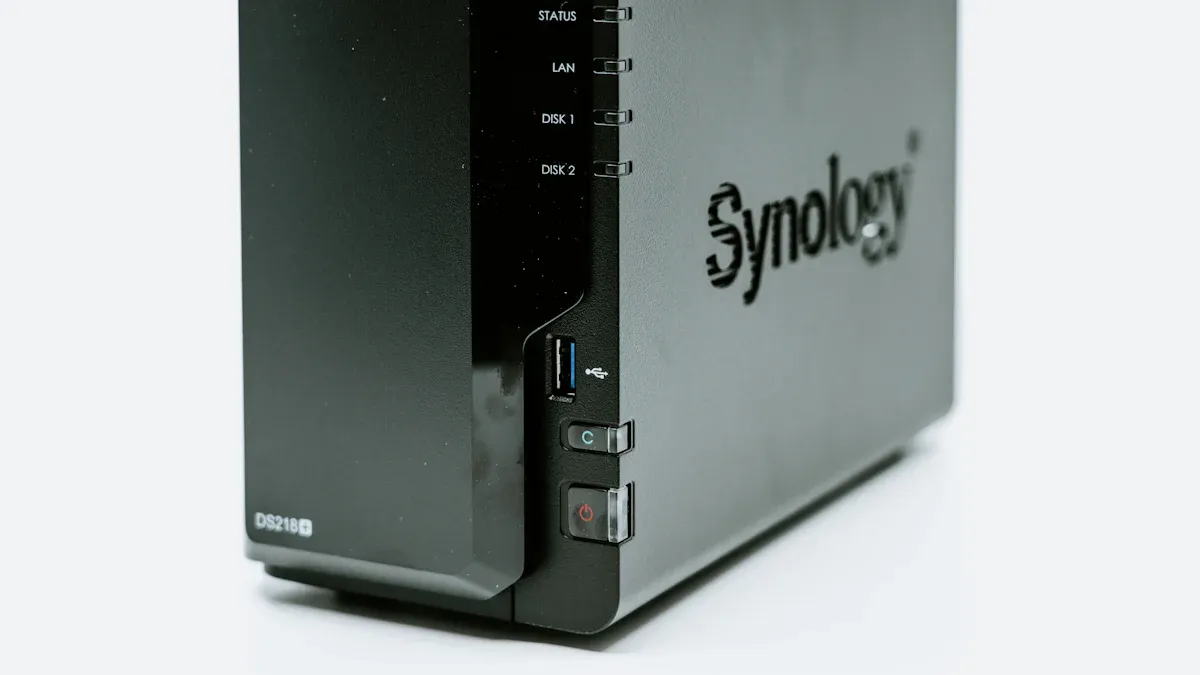
NAS devices store files on a network. This makes it easy for Plex to get media. Many NAS units have RAID or other ways to keep data safe. You can pick a simple NAS or a big one for lots of files.
A NAS like the XTT TS657V2 has lots of space and cool features. It can use up to 36 hard drives and many NVMe SSDs. This server is good for big Plex libraries. You can check on your NAS from anywhere with remote tools.
NAS devices are helpful because:
All media files are in one place.
You can share files with many devices.
They have ways to keep data safe.
Some NAS units are not very strong. This can make Plex slow, especially when changing media types. Pick a NAS with strong hardware for smooth streaming and safe storage.
Cloud and Manual Backups
Backups give extra safety for Plex media. You can use cloud backup or make copies on drives or other servers. Each way has good and bad sides.
Backup Method | Pros | Cons |
|---|---|---|
Cloud Backup | Low entry costs, scalable storage, accessible from anywhere, frequent backups minimize data loss. | Potential high costs for data recovery, limited storage availability, reliance on internet connectivity. |
Manual Backup | Physical control over data, no third-party access, immediate access without internet. | Requires significant capital investment, space for hardware, and ongoing IT support. |
Cloud backups save files online. You can get your data from anywhere, but you need a good internet connection. Manual backups use drives or servers you own. You control your data, but it takes more work and planning.
Using RAID, NAS, and backups together is the best way to keep Plex media safe. The XTT TS657V2 makes this easy. It supports big storage, fast SSDs, and remote checks. You can set up automatic backups and watch your system to keep Plex safe.
Tip: Make backups often and test them. This helps keep your media safe and easy to get, even if something goes wrong.
Setup Steps
Setting up a Plex server that is reliable takes planning. You need to pay attention to each step. The steps below help you pick hardware, install it, set up storage, automate backups, and connect Plex.
Hardware Installation
Picking good hardware is very important. Your server should match your library size and how many people use it. The table shows what hardware is best for different users:
User Type | CPU Recommendation | Hard Drive Recommendation | Memory Recommendation |
|---|---|---|---|
Small (1-5 Active Users) | Intel E3-1220 V1 | 1TB HDD | 8GB RAM |
Medium (5-15 Active Users) | Intel E3 1240 V3 | 2TB HDD | 32GB RAM |
Large (15+ Active Users) | Intel Xeon W-2125 | 2TB HDD | 32GB RAM |
If your library is big or growing, enterprise servers like the XTT TS657V2 are great. This server can use up to 36 hard drives and many NVMe SSDs. It is good for storing lots of media. You can upgrade it easily as your library gets bigger.
Hot-swappable drives help keep your server running. You can change a broken drive without turning off the server. This means you always have access to your media. This is important if you need your server all the time. Advanced RAID recovery helps protect your data, even if you remove a drive by accident.
Tip: Pick servers with hot-swappable drives and remote management. This makes your server more reliable and helps avoid downtime.
RAID/NAS Configuration
After you install your hardware, set up your storage for safety. RAID and NAS both help protect your data if a drive fails. The XTT TS657V2 works with many RAID levels, like RAID 1, 5, 6, and 10. Choose the RAID level that fits your needs for speed, space, and safety.
RAID 1 copies your data for simple safety.
RAID 5 and 6 use parity to keep data safe if one or two drives fail.
RAID 10 mixes copying and splitting data for speed and safety.
NAS devices put all your media in one place. They let you share files on your network. When you set up a NAS, turn on safety features and set user permissions. The XTT TS657V2 has remote tools. You can plan maintenance, backups, and updates when people are not using the server. This keeps things running well and does not stop media access.
Automated Backups
Automatic backups protect your Plex library even more. You can make scripts to save your settings and media files. Here are the steps for backing up a Windows Plex server:
Find where Plex saves its settings, usually at
C:UsersUSERNAME_HEREAppDataLocalPlex Media Server.Make a backup folder on another disk, like
D:Backups.Write a script with
xcopyto copy files from Plex to the backup folder.Save this script as
BackupPlexData.bat.Make another script for database backups and call it
BackupPlexDatabase.bat.Use Windows Task Scheduler to run these scripts automatically.
Automatic backups make sure your newest data is always safe. Test your backups often to make sure you can get your files back if needed.
Plex Integration
When your hardware and storage are ready, connect Plex to your setup. Install Plex Media Server on your hardware. During setup, tell Plex where your NAS or RAID media files are. Set Plex to scan for new content automatically.
Remote management, like with the XTT TS657V2, makes maintenance easy. You can:
Pick times to start and stop maintenance.
Do maintenance when people are not using Plex, like at night or while you are away.
These steps help keep your Plex server healthy. They make sure Redundant Storage for Plex Servers keeps your media safe and working well.
Ongoing Maintenance
Health Checks and Alerts
Doing regular maintenance helps Plex servers work well. Administrators need to check the server often to stop problems before they happen. Some important jobs are:
Back up watched, unwatched, and progress viewstates for libraries.
Make the database run better.
Remove leftover pieces from deleted library items.
Update local metadata for new subtitles and artwork.
Do normal library updates.
Keep media analysis up to date.
Add new concert info and popular songs to music libraries.
Monitoring tools help administrators know if the server is healthy. Tautulli is a favorite tool for many Plex users.
Tool | Features |
|---|---|
Tautulli | Watches server performance, user activity, viewing history, and media info. Sends alerts and does actions when people play things. |
Tip: Turn on alerts to get messages about drive health, storage space, and strange activity. Getting warnings early can stop data loss.
Restore Testing
Testing backups makes sure data is safe and easy to get back. Administrators should not just hope backups work. Good restore testing has a few steps.
Component | Implementation Steps | Verification Method |
|---|---|---|
Data Validation | Use input rules and formatting checks | Use automatic checksums |
Backup Schedule | Do daily small and weekly big backups | Test if you can restore them |
Recovery Testing | Try recovery every month | Write down if it works |
Testing restores often helps find problems early. Automatic checksums make sure data is correct. Practice shows if recovery plans really work.
Storage Upgrades
Media libraries get bigger as time goes on. Administrators should plan upgrades before running out of space. The XTT TS657V2 server can use up to 36 hard drives and many NVMe SSDs, so adding more is easy. Hot-swappable drives let you upgrade without turning off the server. Remote tools make it simple to add or change drives from anywhere.
Note: Do upgrades when fewer people are using the server. Always back up your data before changing hardware.
Troubleshooting
Drive Failures
Drive failures can stop Plex servers and put media libraries at risk. Administrators need to act fast to keep data safe and get things working again. If a drive fails in a RAID server, these steps help save data and cut down on lost time:
Assess the Situation First: Administrators should check if one drive failed or if the RAID setup is broken.
Stop Using the Server: Turning off the server stops more damage and keeps data from being lost.
Check the RAID Health: Look at the RAID status to see if it is damaged or not working at all.
Try Recovery Software: Use RAID recovery software on another computer to try to get back lost data.
RAID Rebuild (For Simple Failures): If just one drive failed, put in a new one and rebuild the RAID using parity to fix it.
⚠️ Tip: Always have extra drives ready to swap in quickly. Hot-swappable bays, like those in the XTT TS657V2, let you change drives without turning off the server.
A RAID setup that is checked often helps stop data loss. Regular checks and alerts help find problems early.
Plex Access Issues
Sometimes users cannot get into Plex libraries. These problems can come from network trouble, permission changes, or software updates. Administrators should use clear steps to fix access problems:
Check Network Connections: Make sure all cables and switches work. Restart routers if you need to.
Verify User Permissions: Check that users have the right access to media folders.
Review Plex Server Status: Make sure Plex is running and updates did not break anything.
Clear Cache and Restart: Clearing the Plex cache and restarting the server can help users get access again.
Monitor for Software Conflicts: Look for other apps that might block Plex or use the same ports.
🛠️ Note: Keeping Plex and server software up to date helps stop many access problems. Administrators should plan updates and watch for user feedback about new issues.
Troubleshooting helps Plex servers work well and lets users keep watching their media without problems.
Redundant storage helps keep Plex media libraries safe from losing data. Important steps are making extra copies of files, checking if drives are healthy, and watching the temperature. Doing regular jobs like backing up the database and cleaning the cache helps the server work well.
Task Description | Purpose |
|---|---|
Backup database every three days | Stops data loss and keeps files safe. |
Optimize database every week | Makes the server run better and faster. |
Remove old cache files every week | Keeps the server quick and working well. |
Hardware that can grow, like Intel Quick Sync Video and NVIDIA GPUs, helps big libraries and smooth streaming. Administrators should check storage needs often and get better hardware as the library gets bigger.
FAQ
What is redundant storage and why does Plex need it?
Redundant storage means you keep extra copies of your data. Plex uses it to protect your media if a drive fails or you delete something by mistake. This helps you not lose your movies, shows, or music.
How often should users back up their Plex media libraries?
Users should back up their Plex media libraries every week. Backing up often keeps new content safe. It also makes it easier to get your files back if something goes wrong.
Can users mix different hard drive sizes in a RAID setup?
RAID works best when all drives are the same size. If you mix sizes, you might waste space or make things slower. Some RAID controllers let you mix sizes, but you should check if it works before you try.
What makes the XTT TS657V2 a good choice for Plex storage?
The XTT TS657V2 has lots of space and hot-swappable drives. It also lets you manage the server from anywhere. These features help you add more storage, change drives easily, and watch your server even when you are not home.